
What this feature does:
The inbox lets teams view, search, filter, assign, and respond to customer conversations.
When to use it:
Use the inbox to handle daily customer messages, respond to questions, assign work, and keep conversations organized.
How to use it:
- Open Chats from the navigation menu.
- Select the channel or inbox view you want to use.
- Search for a customer or conversation if needed.
- Select a conversation from the list.
- Review the message history.
- Type a reply or use available reply actions.
- Send the message.
- Assign the chat or mark it open or closed as needed.
Expected result:
The customer receives your response and the conversation is updated in the inbox.
Important notes:
- If WhatsApp is not connected, you may see a prompt to connect WhatsApp before viewing WhatsApp chats.
- Some conversations may be restricted by the 24-hour messaging window or platform rules.
- Template messages may be required in some cases.
- Users may only see chats allowed by their role and ticket settings.
- Billing issues may prevent messaging until resolved.
- Some channel-specific actions vary by platform.
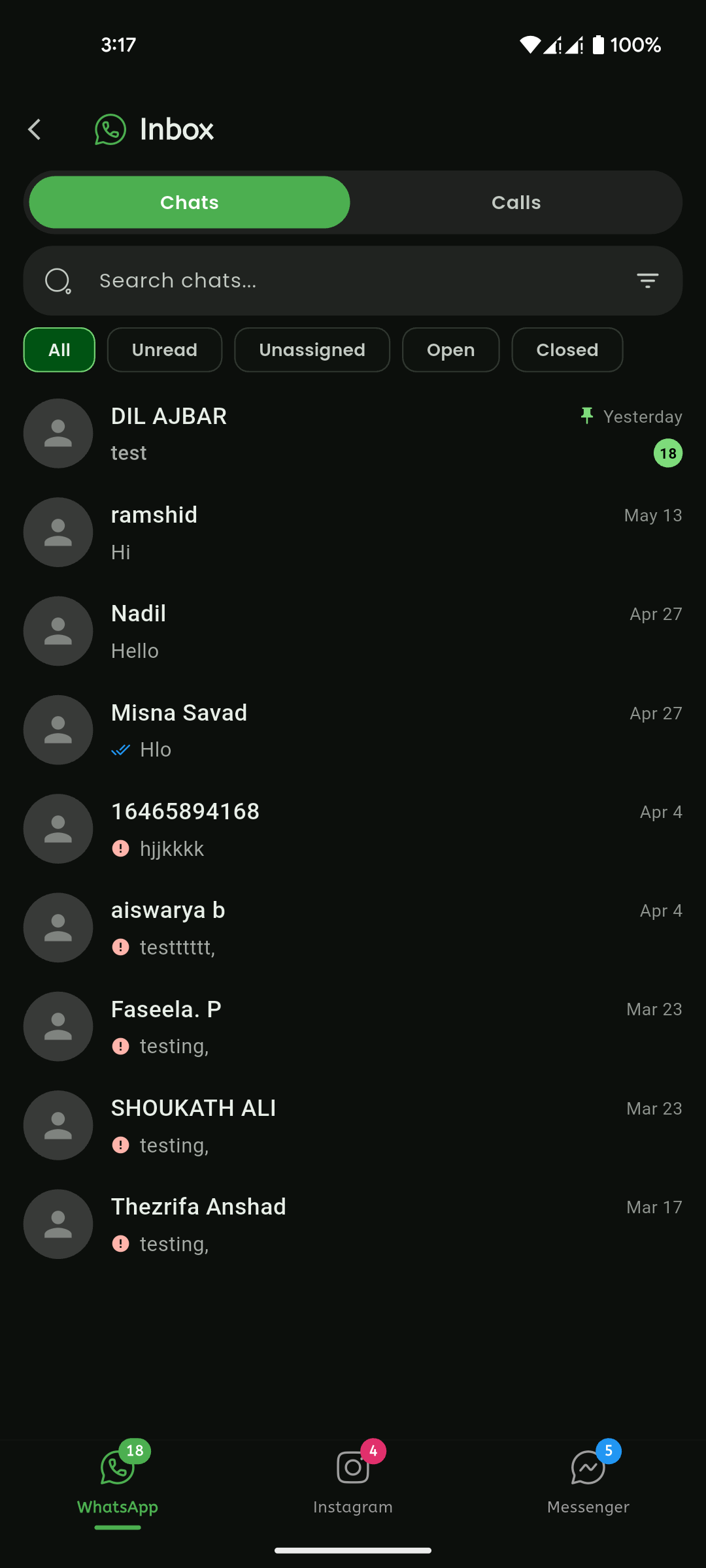
Mobile View