
Chazt is organized around daily customer communication work. The app brings together conversations, contacts, orders, automation, campaigns, team management, and settings.
Main areas of the app
Dashboard
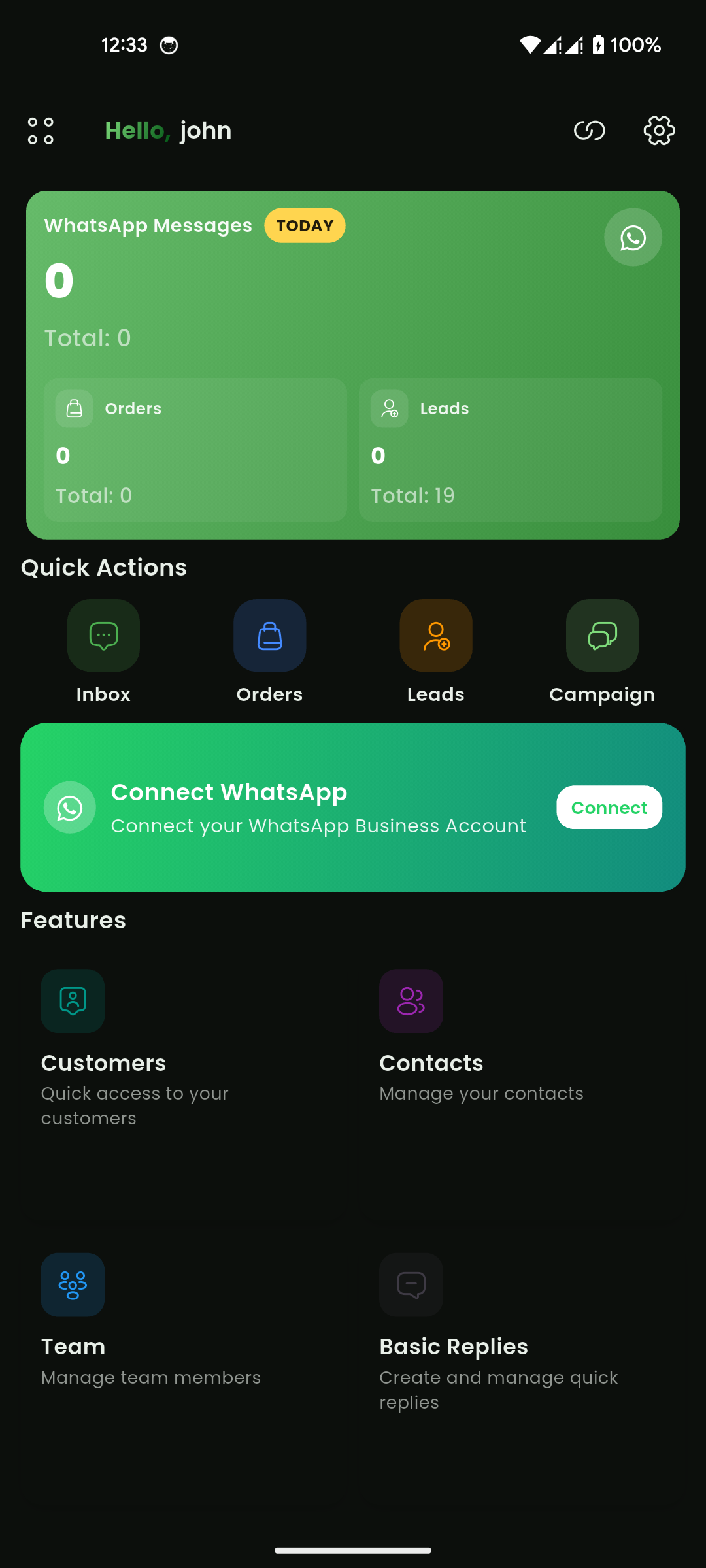
The dashboard gives users a quick overview of the account and important actions. It may show:
- Greeting and account status
- Quick actions
- Feature shortcuts
- Recent campaigns
- Message summaries by platform
- Connection status for channels such as WhatsApp, Instagram, and Messenger
- Billing alerts when an invoice or payment needs attention
Mobile View
Inbox and chats
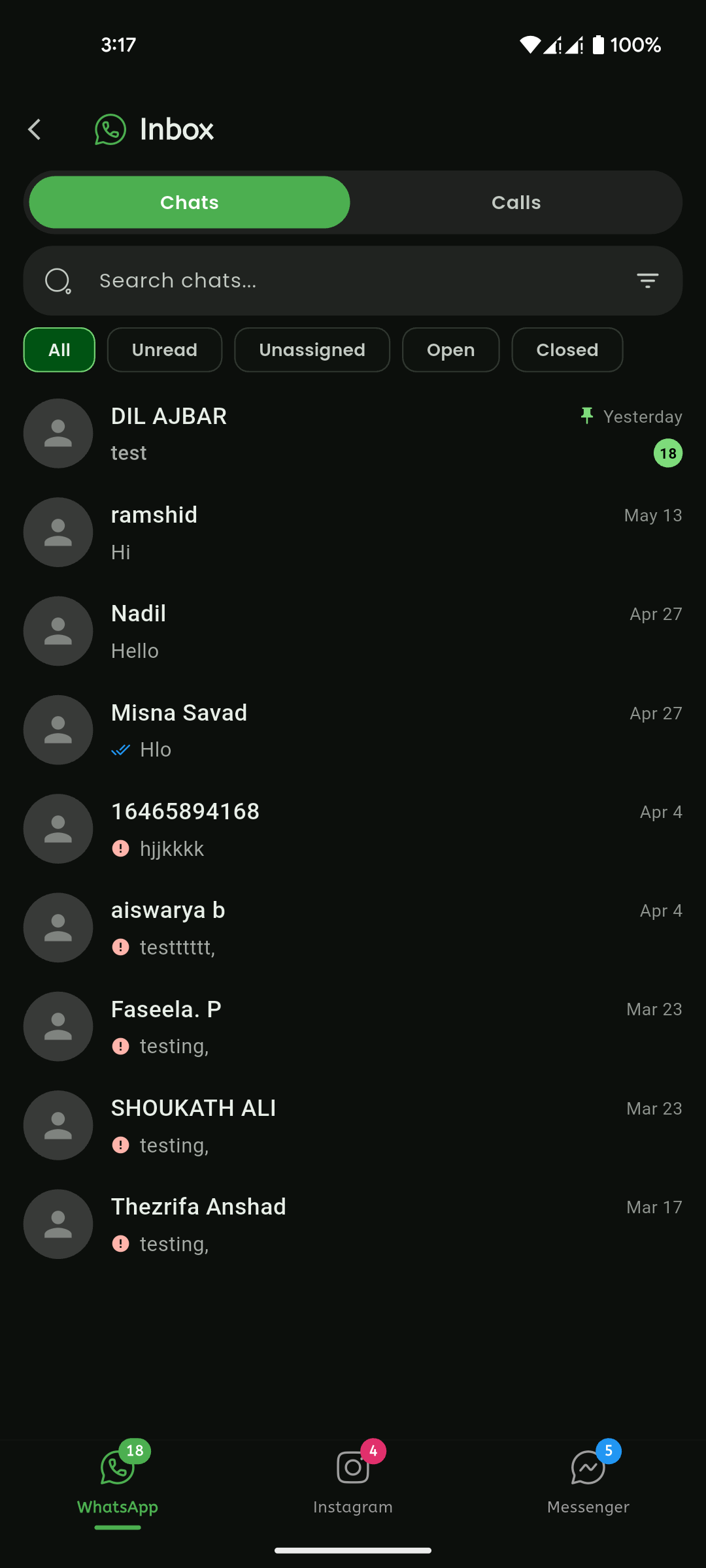
The chat inbox allows teams to view, search, filter, assign, and reply to customer conversations. Separate channel experiences may exist for WhatsApp, Instagram, and Messenger.
Mobile View
Contacts, leads, and customers
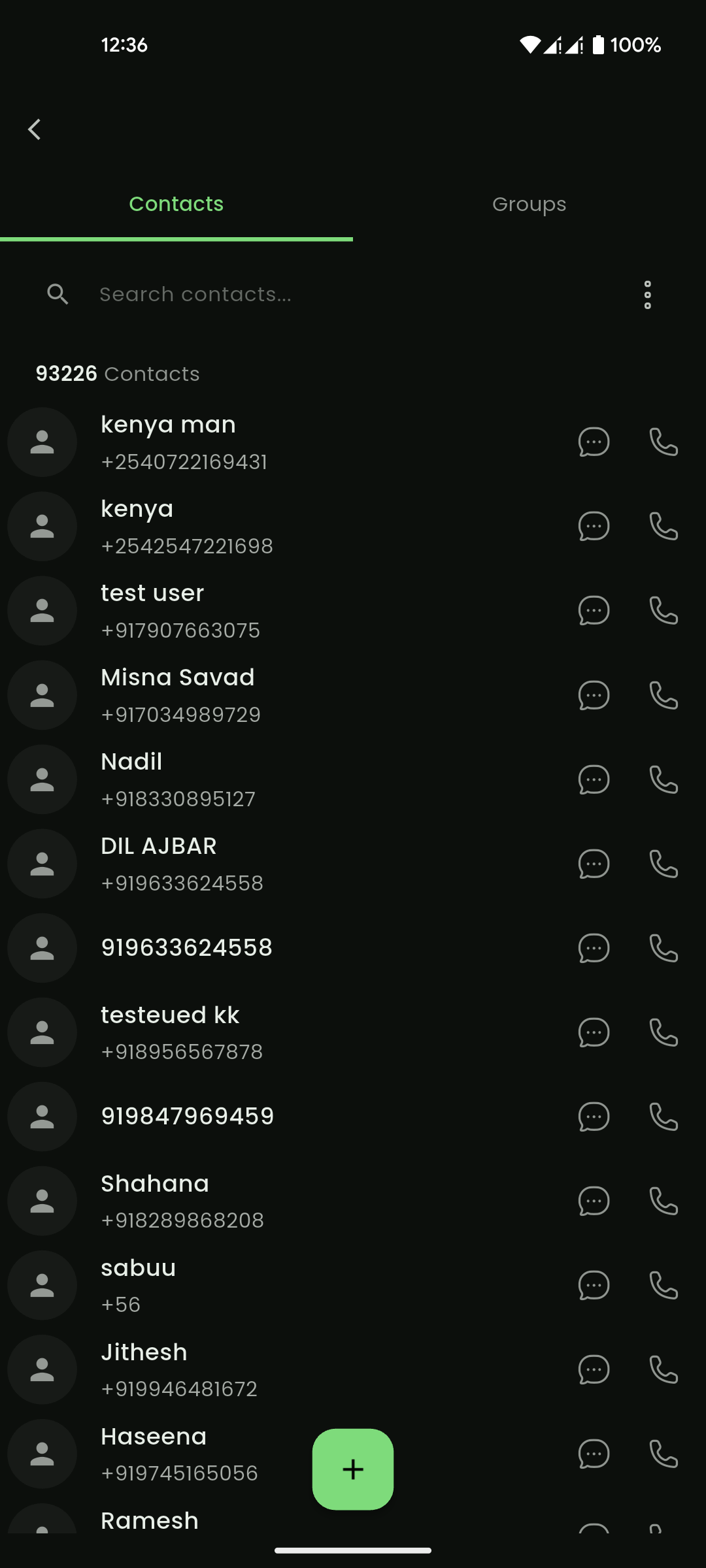
Chazt includes areas for managing contact records, lead records, customer records, groups, and contact details.
Mobile View
Campaigns and templates
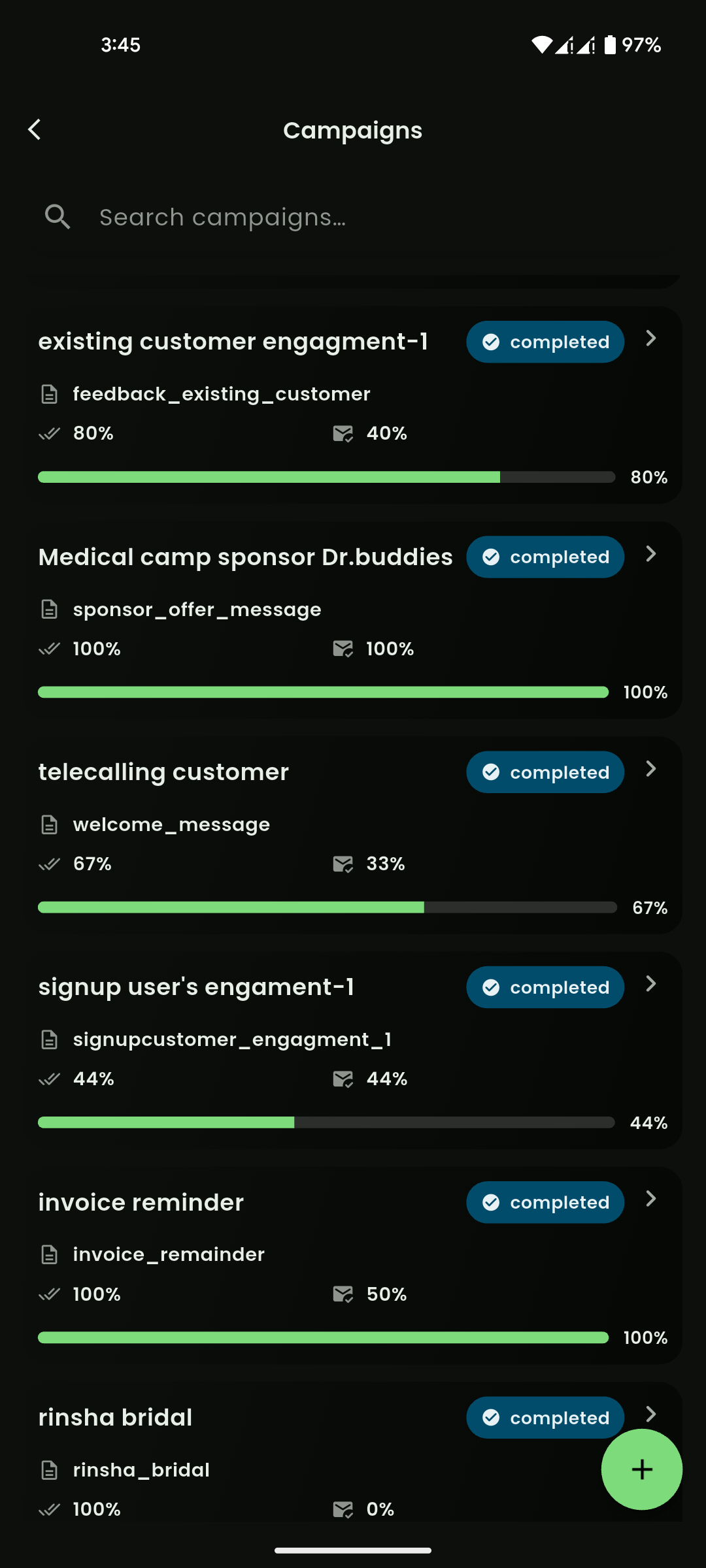
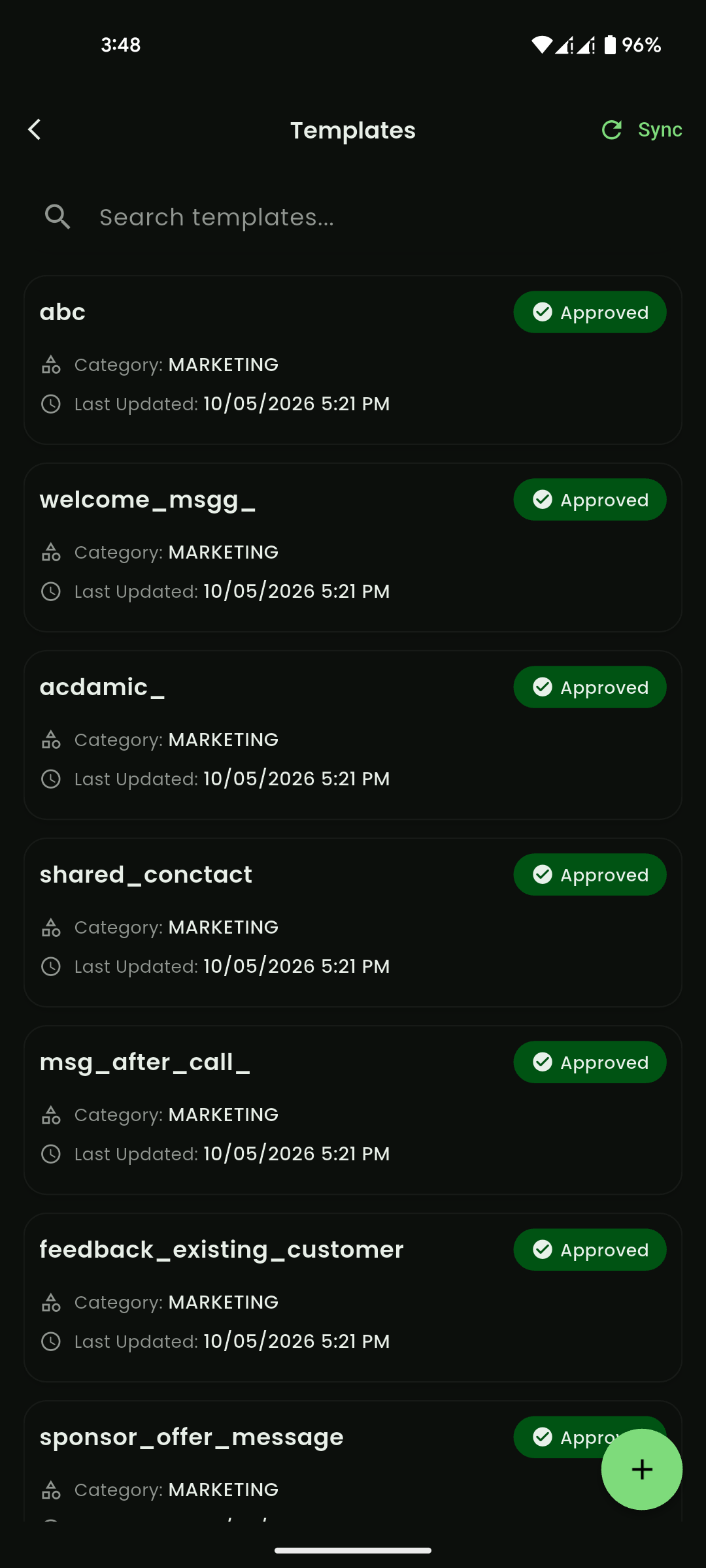
Campaigns help teams send approved messages to contacts or groups. Templates are reusable message formats used for campaigns and template-based replies.
Mobile View
Mobile View
Automation
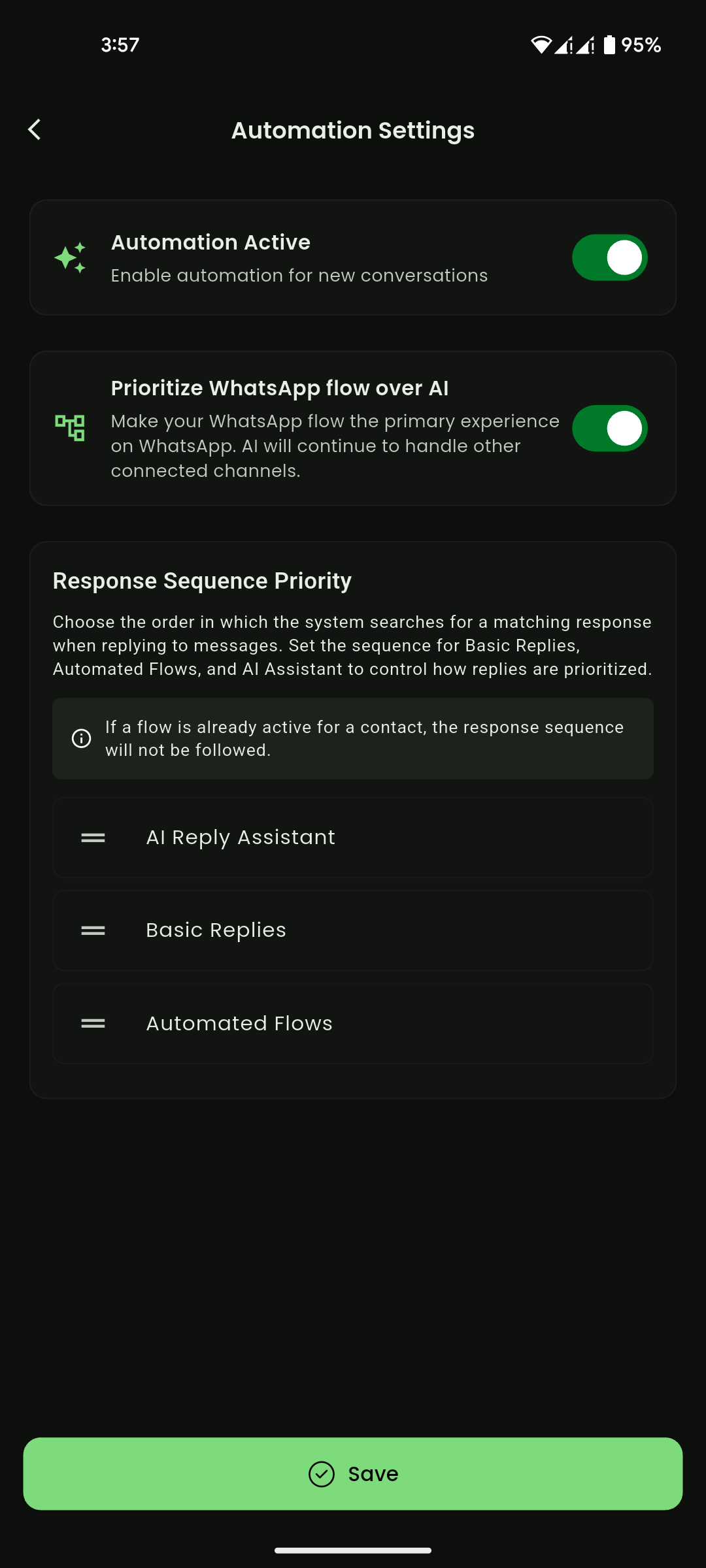
Automation includes basic replies and AI-assisted replies. Basic replies allow teams to create reusable responses. AI-assisted replies can use settings, keywords, and uploaded documents to help generate responses.
Mobile View
Orders
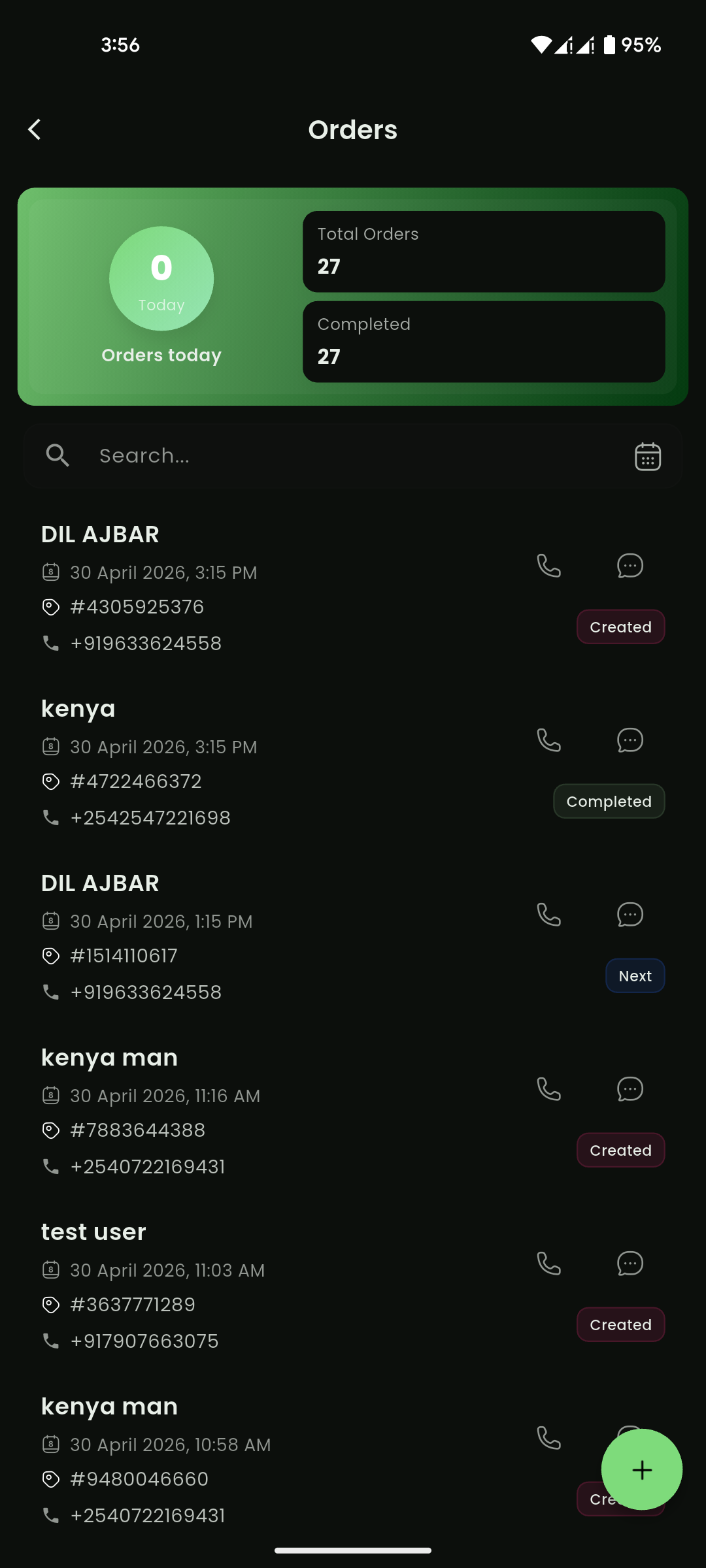
Orders help teams create, view, update, and manage order-related customer information. Order settings allow teams to configure order fields, order statuses, status notifications, and status templates.
Mobile View
Team
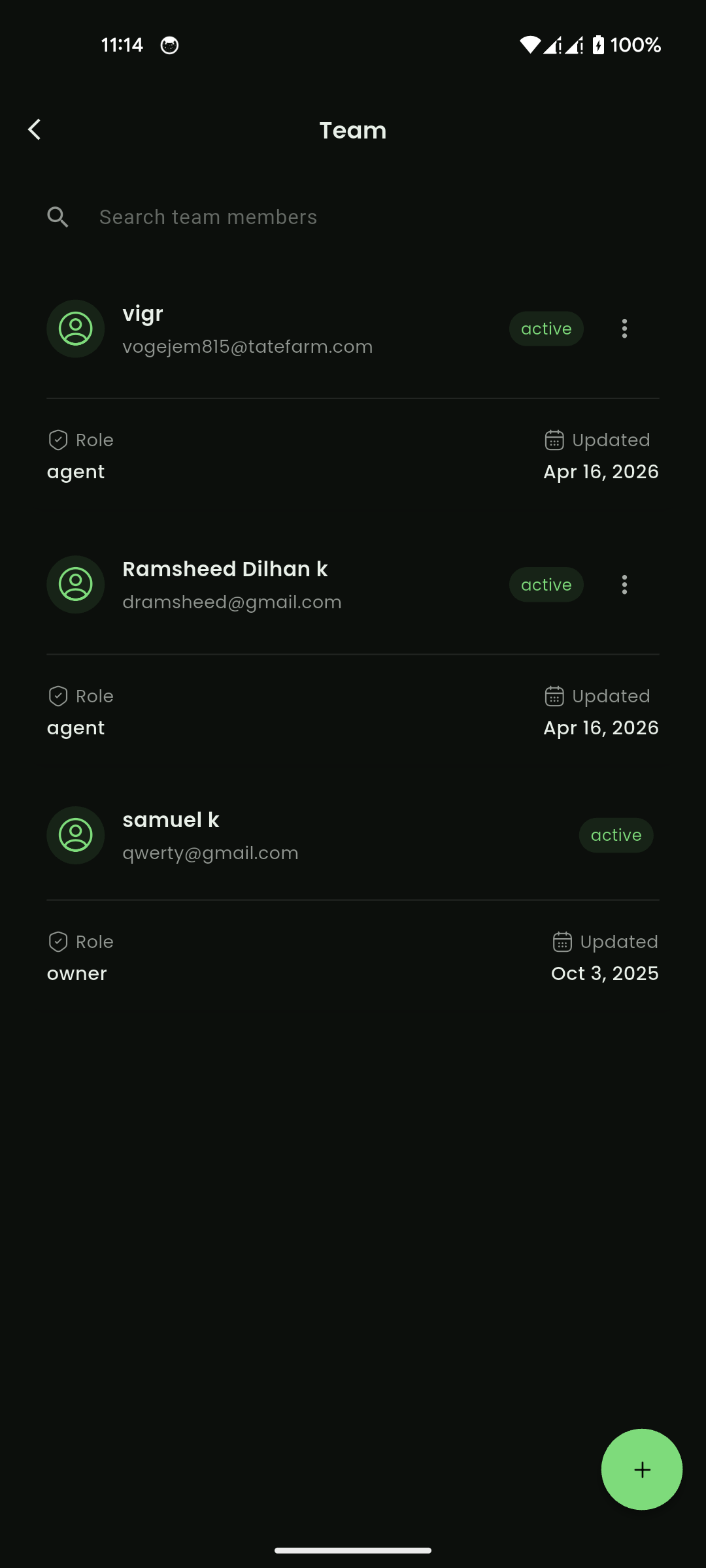
The Team area allows users with permission to invite, edit, and remove team members.
Mobile View
Settings
Settings include profile, account, organization, automation, WhatsApp, ticketing, and related configuration areas.
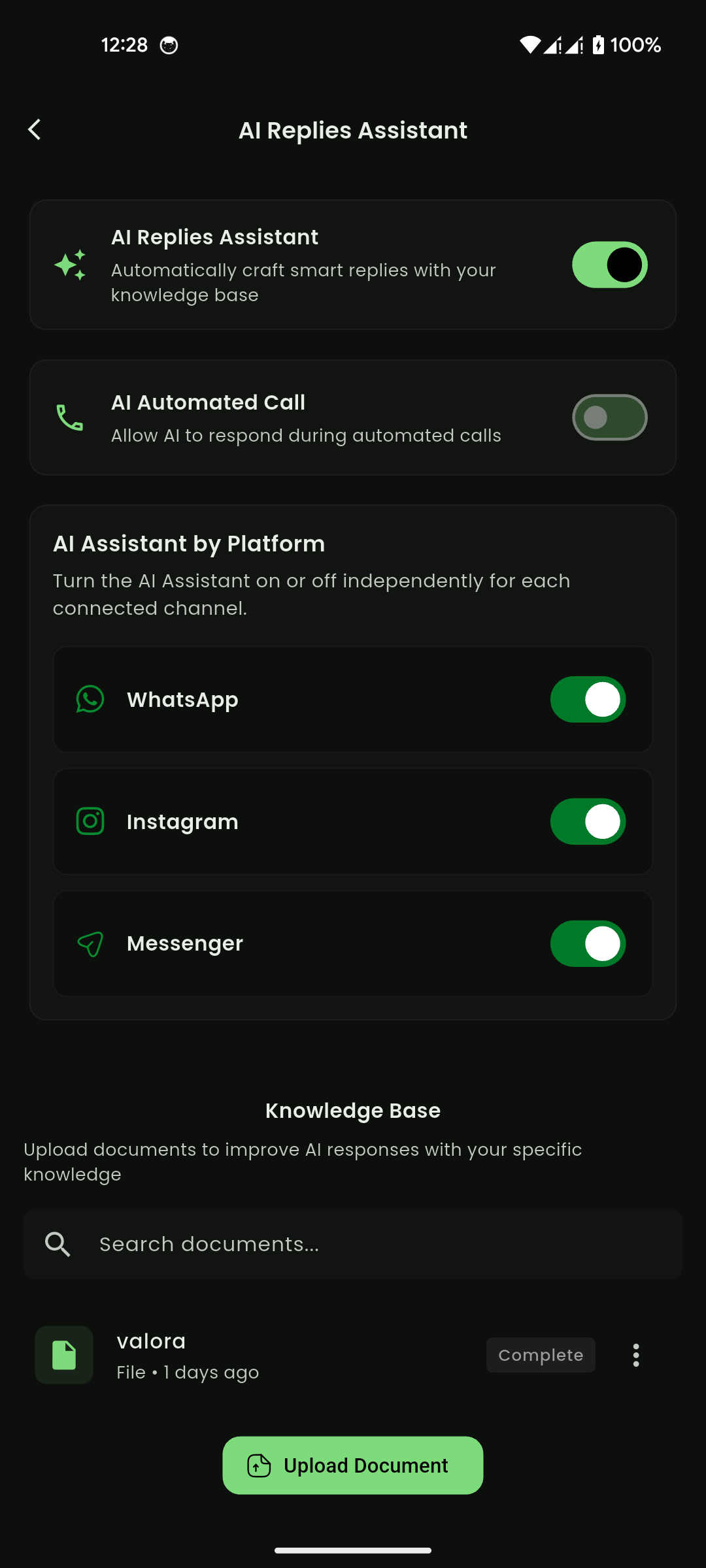
Mobile View
Common actions available to users
Depending on permissions and setup, users can:
- Search chats, contacts, groups, templates, campaigns, leads, and customers
- Reply to chats
- Send message templates
- Send media files
- Assign chats
- Mark chats as open or closed
- Block or unblock a user
- Report message content
- Add contacts
- Import contacts or groups from files
- Export contacts, groups, campaign recipients, leads, or orders where available
- Create campaigns
- Stop campaigns
- Create and manage templates
- Configure basic replies and AI replies
- Upload AI knowledge documents
- Create and update orders
- Update lead or order statuses
- Invite team members
- Create support tickets
- View billing or pricing information