
How to access Chazt
Customers can access Chazt from the Chazt web application or app experience provided by the Chazt team.
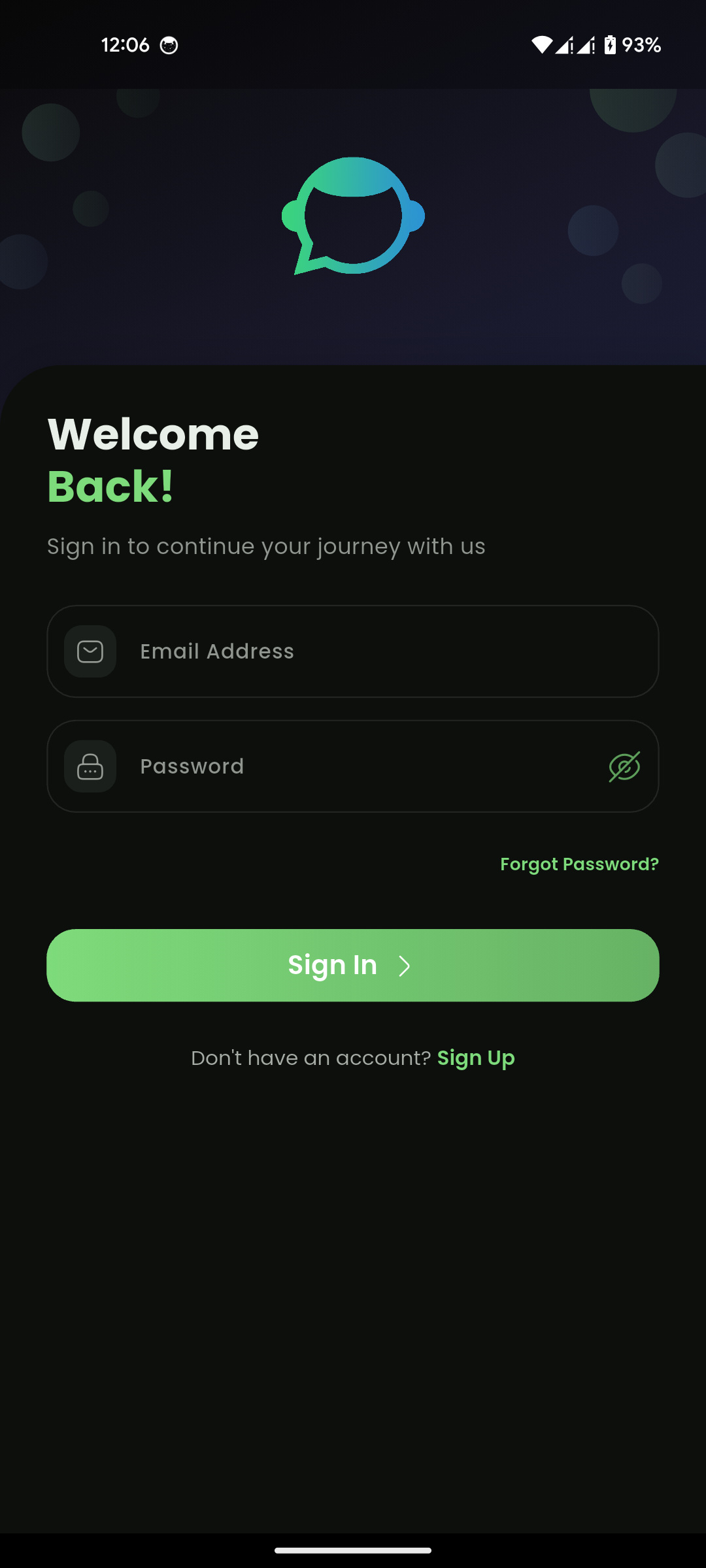
Mobile View
How to create an account or log in
Log in
- Open Chazt.
- Enter your email address.
- Enter your password.
- Select Sign In.
- If you were invited to a team, review the invitation prompt and choose whether to accept it.
Expected result:
You are taken to your dashboard or main inbox.
Create an account
- Open the signup page.
- Enter your name.
- Enter your business name.
- Select your country.
- Enter your business phone number.
- Enter your business email address.
- Create a password.
- Select Create Account.
Expected result:
Your Chazt account is created and you can continue with setup.
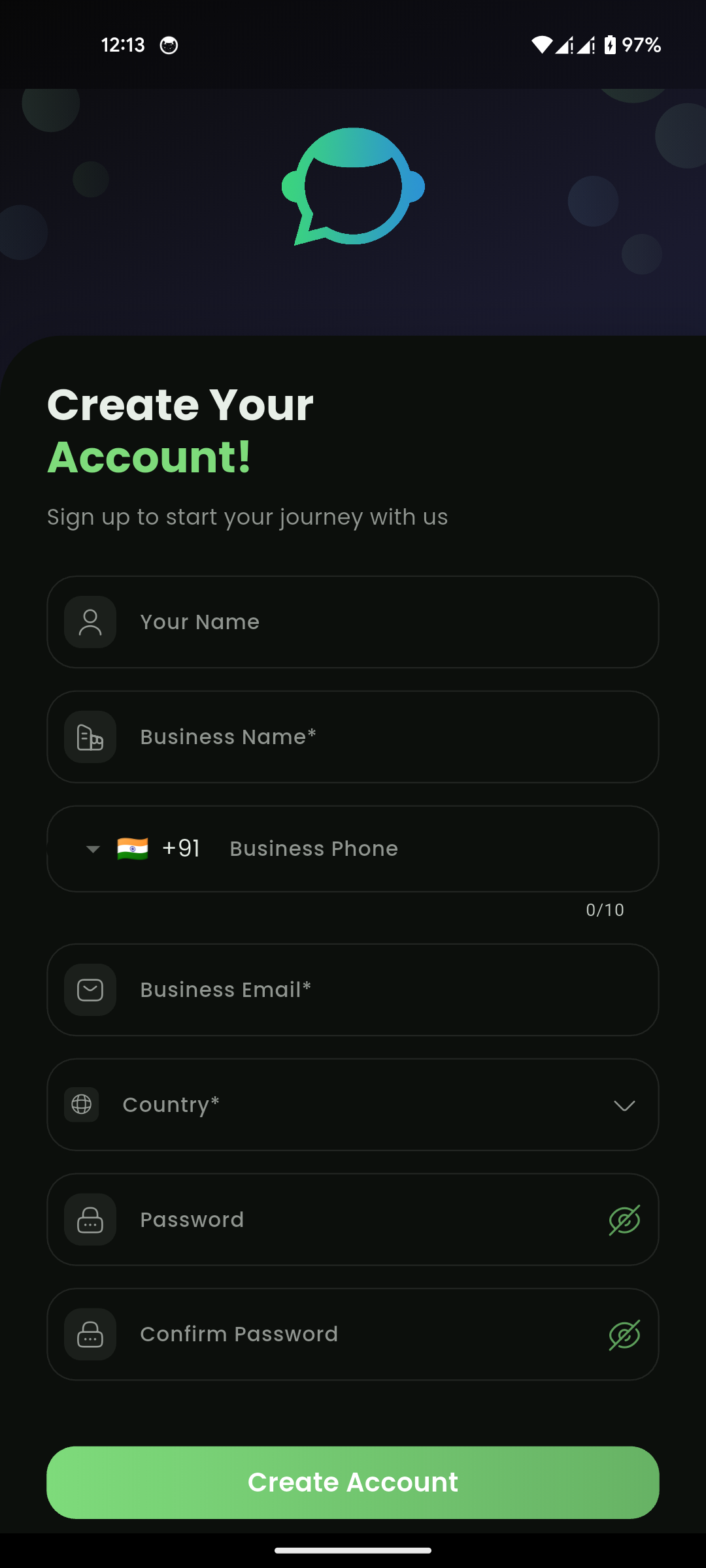
Mobile View
First-time setup
After creating an account, complete the setup steps that apply to your business:
- Connect your messaging channels (WhatsApp, Instagram, or Messenger).
- Add or import contacts.
- Invite team members.
- Review organization settings.
- Configure ticketing and automation settings if your team will use them.
- Create templates, groups, or campaigns as needed.
Next step: See Onboard Channels for a step-by-step guide to connecting WhatsApp, Instagram, and Messenger — including setup requirements and linking instructions.
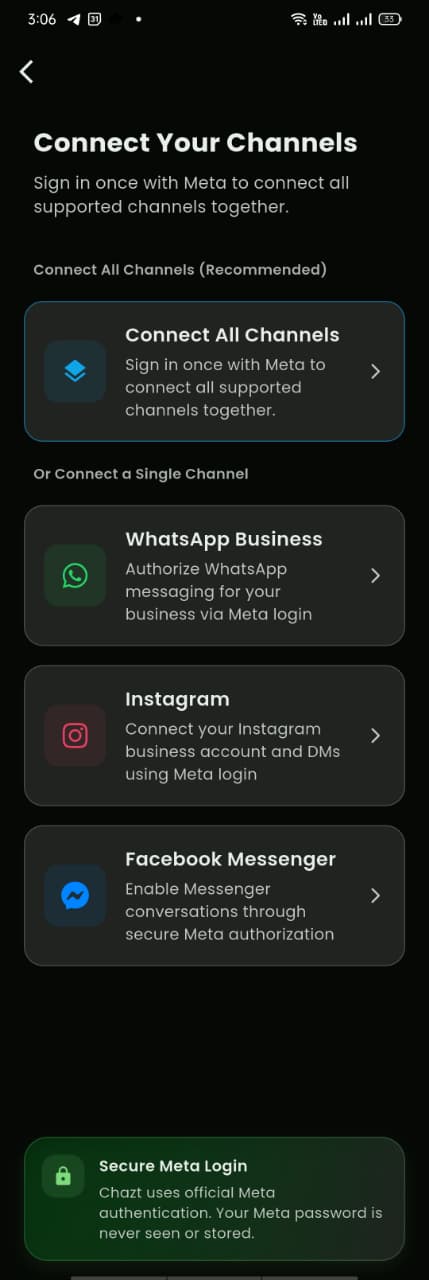
Mobile View
Basic navigation overview
The main navigation includes sections such as:
- Inbox
- Chats
- Orders
- Contacts
- Contacts
- Leads
- Customers
- Grow
- Campaigns
- Templates
- Automation
- Setup
- Order Settings
- Team
- Billing
- Settings
- Help & Support
- Tickets
- Contact Support
- Pricing
- Developer Tools
- Logout
Some navigation items may only appear for users with the required permissions.
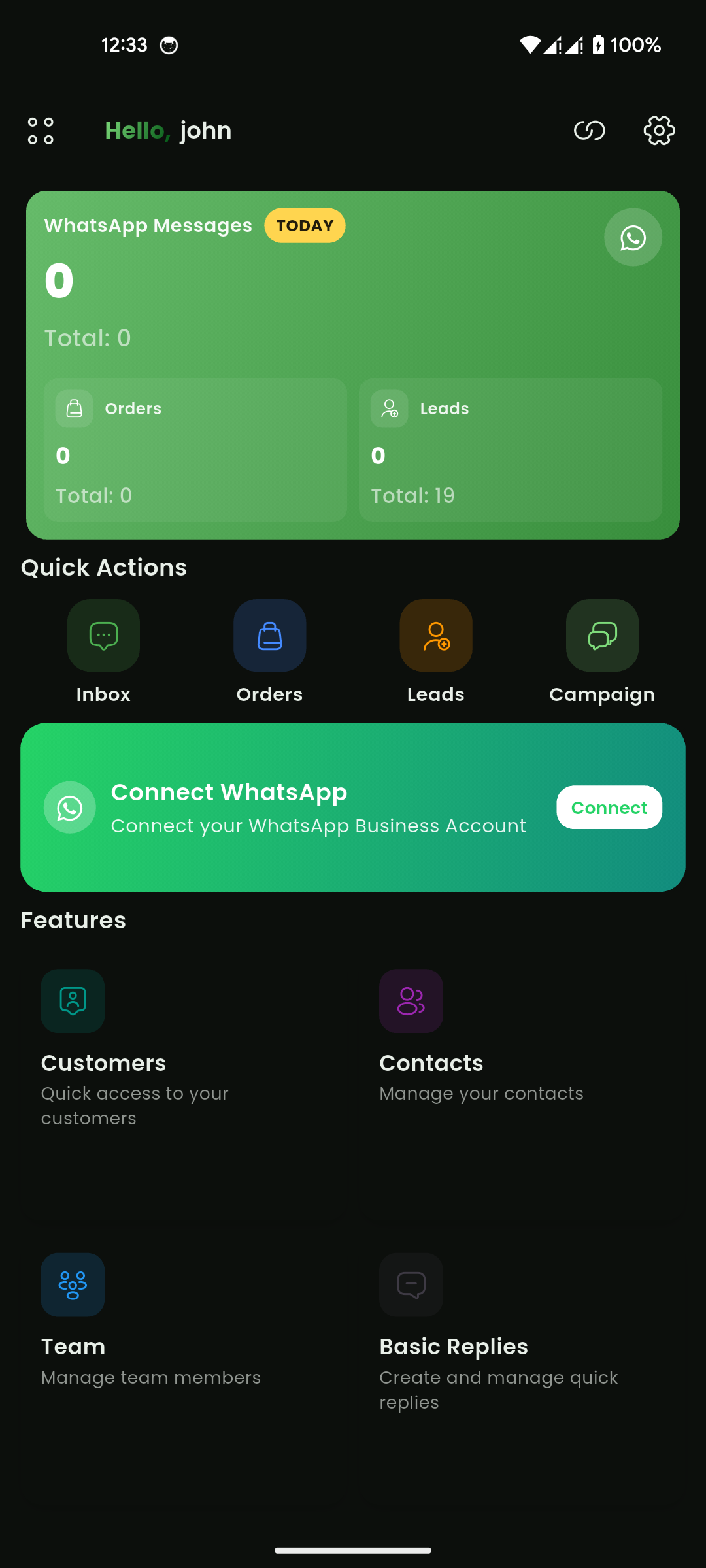
Mobile View