
What this feature does:
WhatsApp chats allow teams to receive and respond to WhatsApp Business conversations inside Chazt.
It also includes a Calls view for WhatsApp call history.
When to use it:
Use WhatsApp chats for customer support, order updates, sales inquiries, reminders, and service communication.
How to use it:
- Open Chats.
- Select or open a WhatsApp conversation.
- Read the customer's message history.
- Reply with text, media, a template, or another available message type.
- Assign, close, open, block, or report the conversation when needed.
WhatsApp Calls
Use the Calls tab inside WhatsApp Inbox to view and manage call activity.
How to use WhatsApp Calls:
- Open Inbox > WhatsApp.
- Switch from Chats to Calls.
- Use search to find a caller quickly.
- Review call direction and date/time from the call list.
Expected result:
The WhatsApp conversation is updated and your response is sent to the customer.
Call records are visible in the WhatsApp Calls list for tracking and follow-up.
24-Hour Messaging Limit
When the customer has not sent a message in the last 24 hours, WhatsApp restricts outbound messaging:
- You cannot send normal free-form messages.
- You can only send approved template messages.
How to handle it:
- Open the conversation and check for the 24 Hour Limit alert.
- Select the template message option in the chat composer.
- Choose an approved template that matches the customer context.
- Send the template message.
- Continue with normal chat replies only after the customer responds again.
Important notes:
- WhatsApp Business must be connected before WhatsApp chats are available.
- Some messages may require approved templates.
- After 24 hours, free-form replies are blocked until the customer messages again.
- WhatsApp profile and business settings can be managed from WhatsApp Settings.
- Voice call options may be available if enabled.
Screenshots
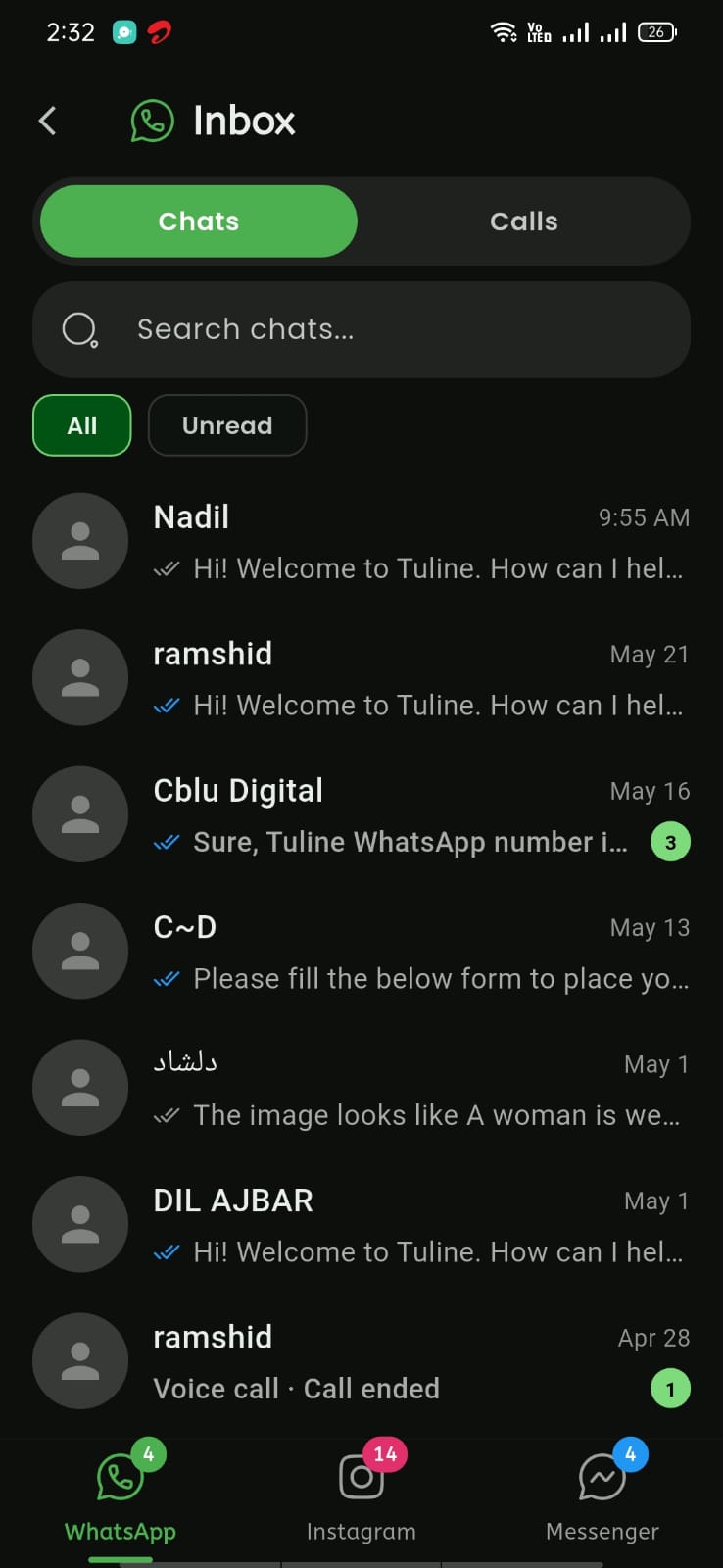
Mobile View
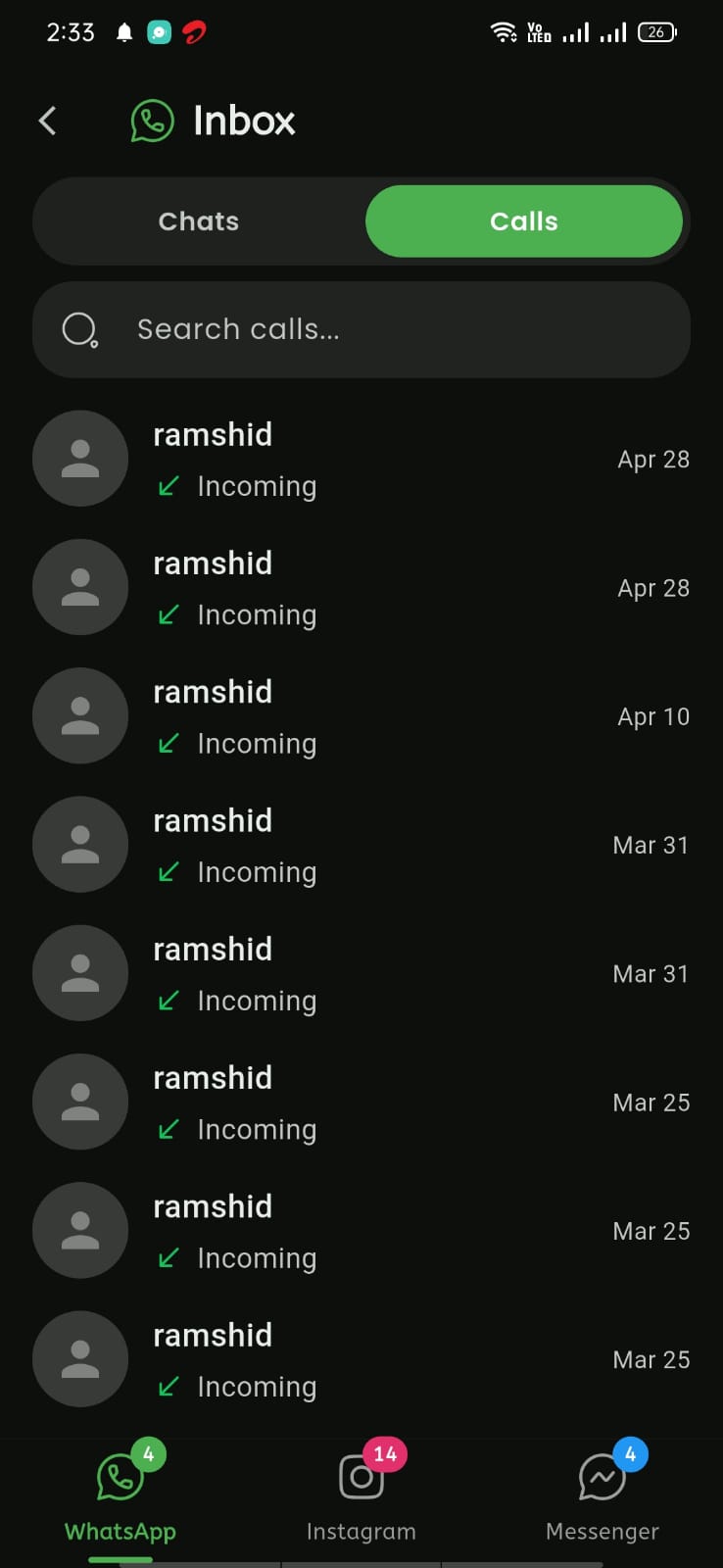
Mobile View
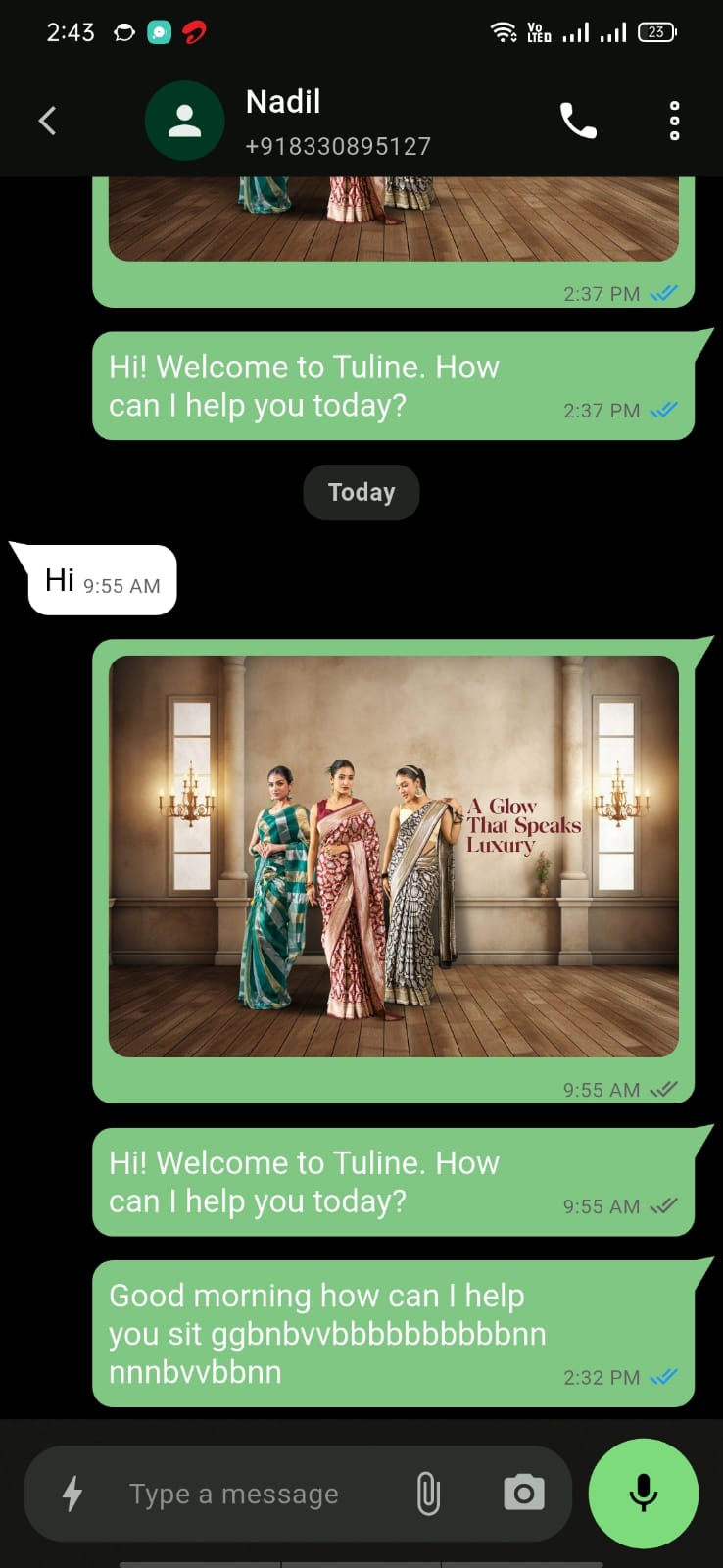
Mobile View
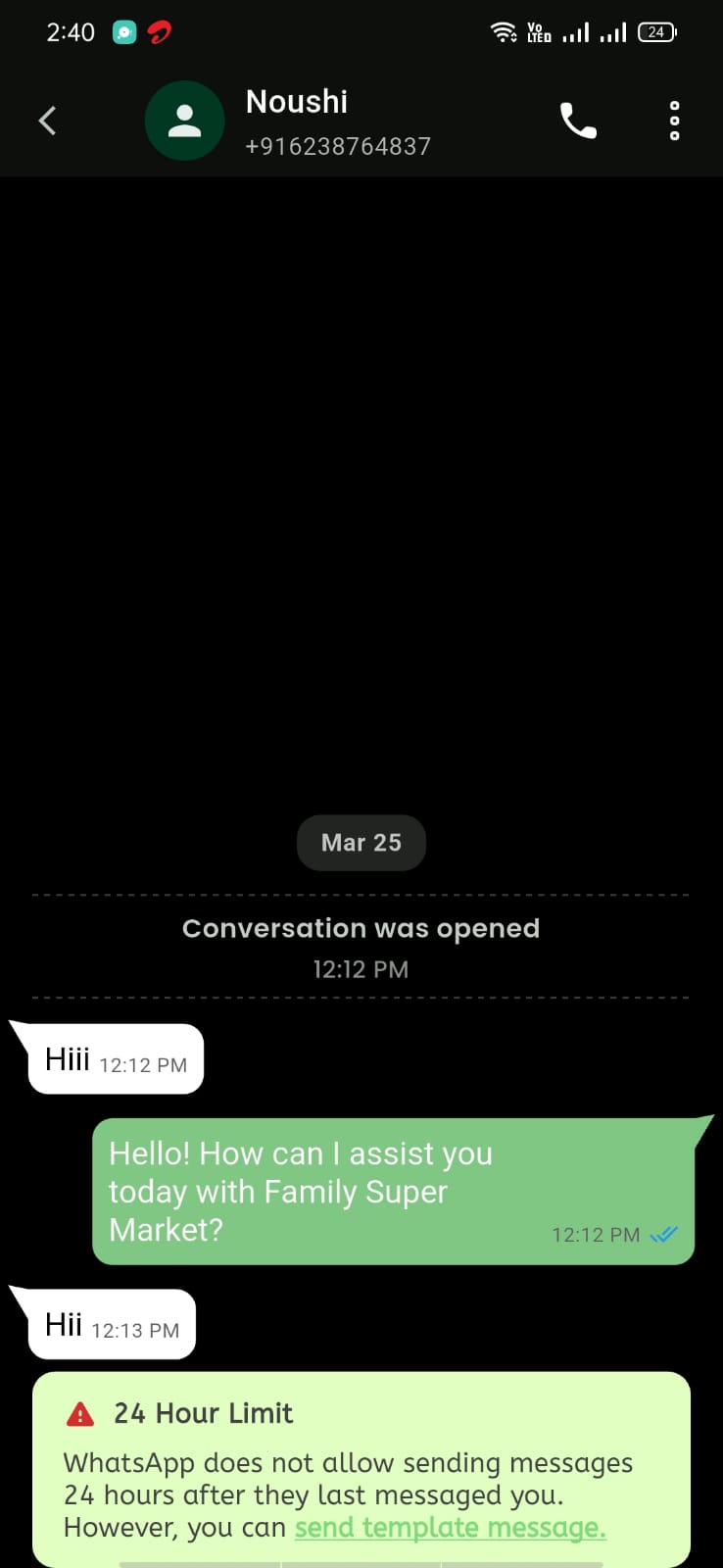
Mobile View