
Connect your business messaging channels to Chazt so you can manage all conversations from one place. Chazt supports WhatsApp, Instagram, and Messenger via the Omni-Channel onboarding flow or individually as separate channel setups.
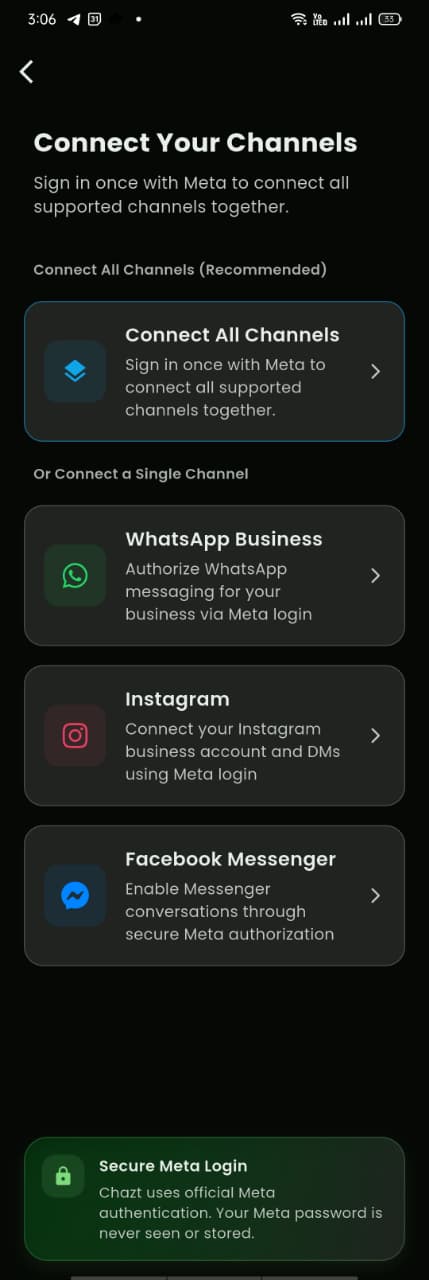
Mobile View
Before You Begin — Setup Requirements
Make sure you have the following ready before starting any channel onboarding:
| Requirement | Details |
|---|---|
| Facebook Account | Required for all channels. You must have an active personal Facebook account. |
| Facebook Page | Required if connecting Instagram or Messenger. Create or admin a Facebook Page linked to your business. |
| Instagram Account (optional) | Only required if you want to connect Instagram DMs. Must be a Professional (Business or Creator) account linked to your Facebook Page. |
| Messenger (optional) | Only required if you want to receive Messenger conversations. This is enabled automatically once your Facebook Page is connected. |
| WhatsApp Number | You can use a new number or your existing business phone number through Embedded Signup. |
Note: If you already have the script or API credentials provided by Chazt, you can skip ahead to the relevant channel section and use those directly.
Linking Instagram & Messenger to Your Facebook Page
Instagram and Messenger both require your Facebook Page to be properly connected. Complete this step before proceeding with their onboarding.
Steps to Link Instagram to Your Facebook Page
- Go to your Facebook Page.
- Open your profile menu and navigate to Settings.
- In the left sidebar, select Linked Accounts.
- Find the Instagram section and select Connect Instagram.
- Log in to your Instagram account when prompted.
- Confirm the permissions and complete the link.
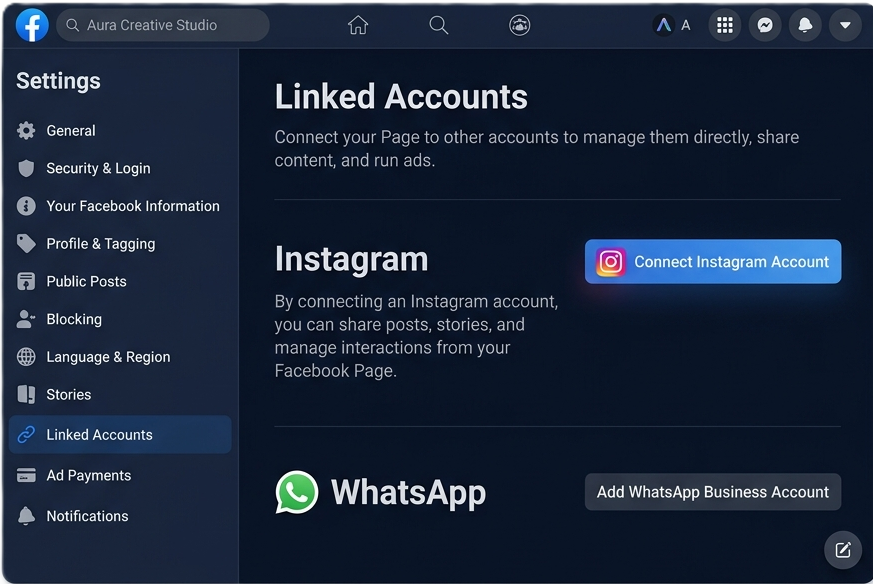
Expected result:
Your Instagram account now appears as linked under your Facebook Page settings. You can proceed to onboard Instagram within Chazt.
Omni-Channel Onboarding
Omni-Channel onboarding lets you connect all your channels (WhatsApp, Instagram, Messenger) in a single guided flow.
- From the Chazt dashboard, go to Settings → Integrations.
- Select Omni-Channel Setup.
- Follow the guided steps to connect each channel:
- Authenticate with your Facebook account.
- Select your Facebook Page.
- Grant the required permissions for WhatsApp, Instagram, and Messenger.
- Enter your WhatsApp number when prompted (new or existing business number supported via Embedded Signup).
- Complete the verification steps for each channel.
- Select Finish Setup.
Expected result:
All selected channels are connected and visible in your Chazt integrations dashboard.
Separate Channel Onboarding
You can also connect each channel individually if you only need one or two.
Important: You can onboard using a new number or your existing business phone number via Embedded Signup. You do not need to delete your existing business number. Meta WhatsApp Embedded Signup Documentation
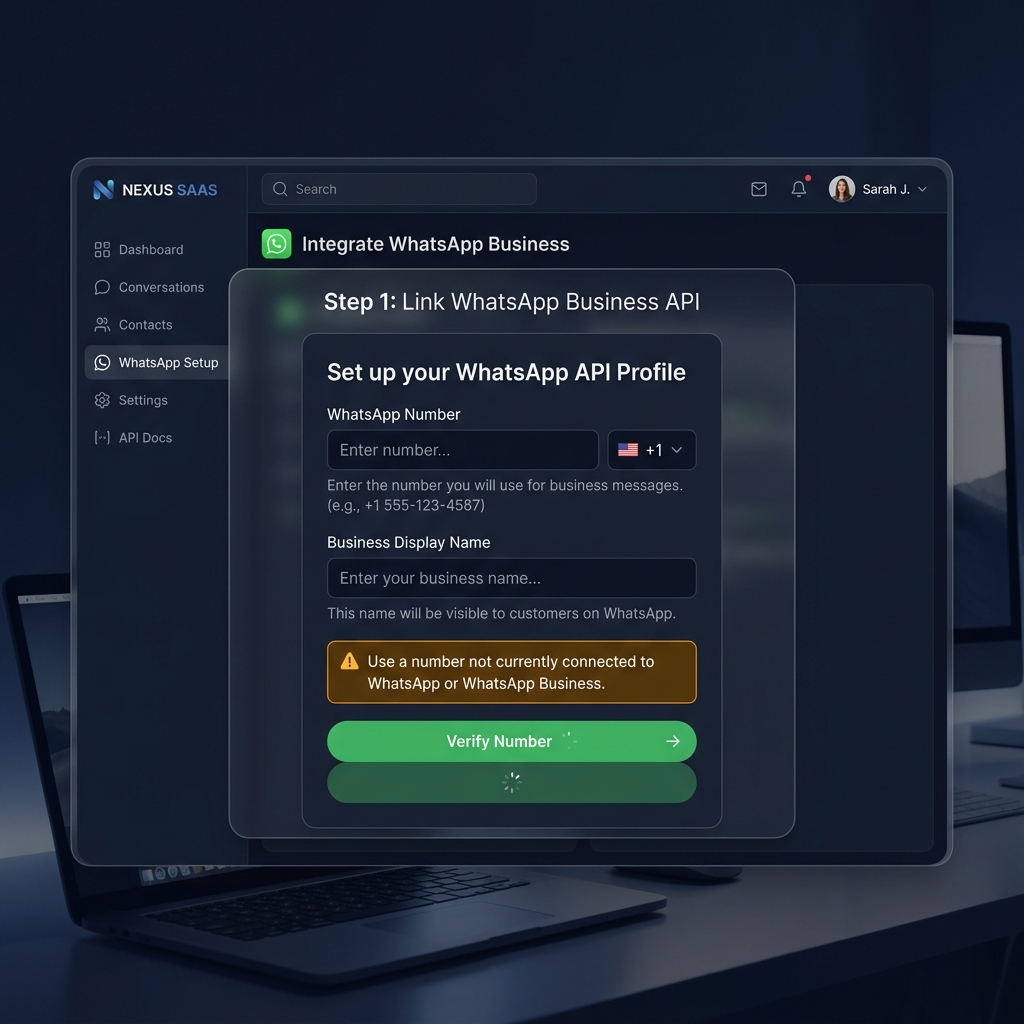
- Go to Settings → Integrations → WhatsApp.
- If you have a script or API credentials from Chazt, enter them directly and skip to step 6.
- Enter your WhatsApp business phone number (with country code).
- Enter your Business Display Name.
- Select Verify Number and follow the OTP verification steps.
- Once verified, select Save & Connect.
Expected result:
Your WhatsApp number is connected. Incoming and outgoing WhatsApp messages will appear in the Chazt Inbox.
Prerequisite: Your Instagram account must be linked to your Facebook Page before proceeding. See Linking Instagram to Your Facebook Page.
- Go to Settings → Integrations → Instagram.
- Select Connect with Facebook.
- Authenticate with your Facebook account.
- Select the Facebook Page that has your Instagram account linked.
- Grant the requested permissions.
- Select Confirm.
Expected result:
Instagram DMs will now appear in the Chazt Inbox under the Instagram Chats section.
Messenger
Prerequisite: You must have an active Facebook Page. Messenger is tied to your Facebook Page, not a personal profile.
- Go to Settings → Integrations → Messenger.
- Select Connect with Facebook.
- Authenticate with your Facebook account.
- Select the Facebook Page you want to enable Messenger for.
- Grant the requested permissions.
- Select Confirm.
Expected result:
Messenger conversations from your Facebook Page will now appear in the Chazt Inbox under the Messenger Chats section.
What's Next?
Once your channels are connected:
- Head to the Inbox to see and manage incoming messages across all channels.
- Set up Automation to auto-respond or route conversations.
- Create Templates for quick replies and campaigns.