
What this feature does:
Orders allow teams to create, view, update, and track customer orders from one workflow.
When to use it:
Use Orders when your business needs to manage order details, status updates, attachments, and customer communication.
How to use it:
- Open Orders to view the order list and summary cards.
- Use search/date filter to find a specific order.
- Select an order from the list to open Order Details.
- In Order Details, review customer info, order data, and attached files.
- Use Update status to mark the latest status and add a note.
- Save the update.
- To create a new order, select the + action from the list page.
- Complete the create form:
- Select contact
- Enter required fields (example: Name, Time)
- Upload file if required
- Select Create Order.
Expected result:
The order is created, listed, and trackable with full details and status history updates.
Important notes:
- Required fields are controlled by the selected order type setup.
- Status options come from Order Statuses configuration.
- File upload accepts only configured formats.
- If a field or status is missing, configure it in Order Settings first.
Order list
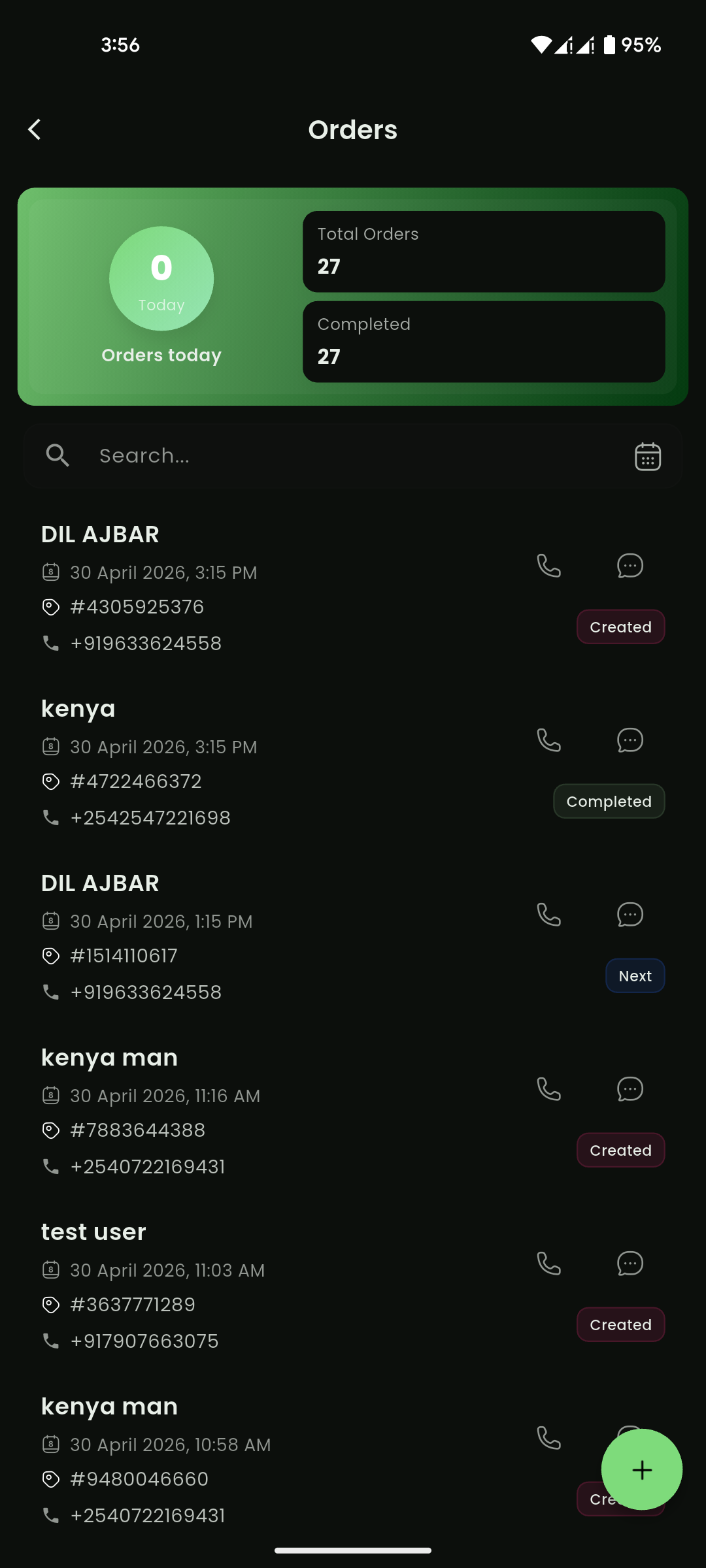
Mobile View
Create order
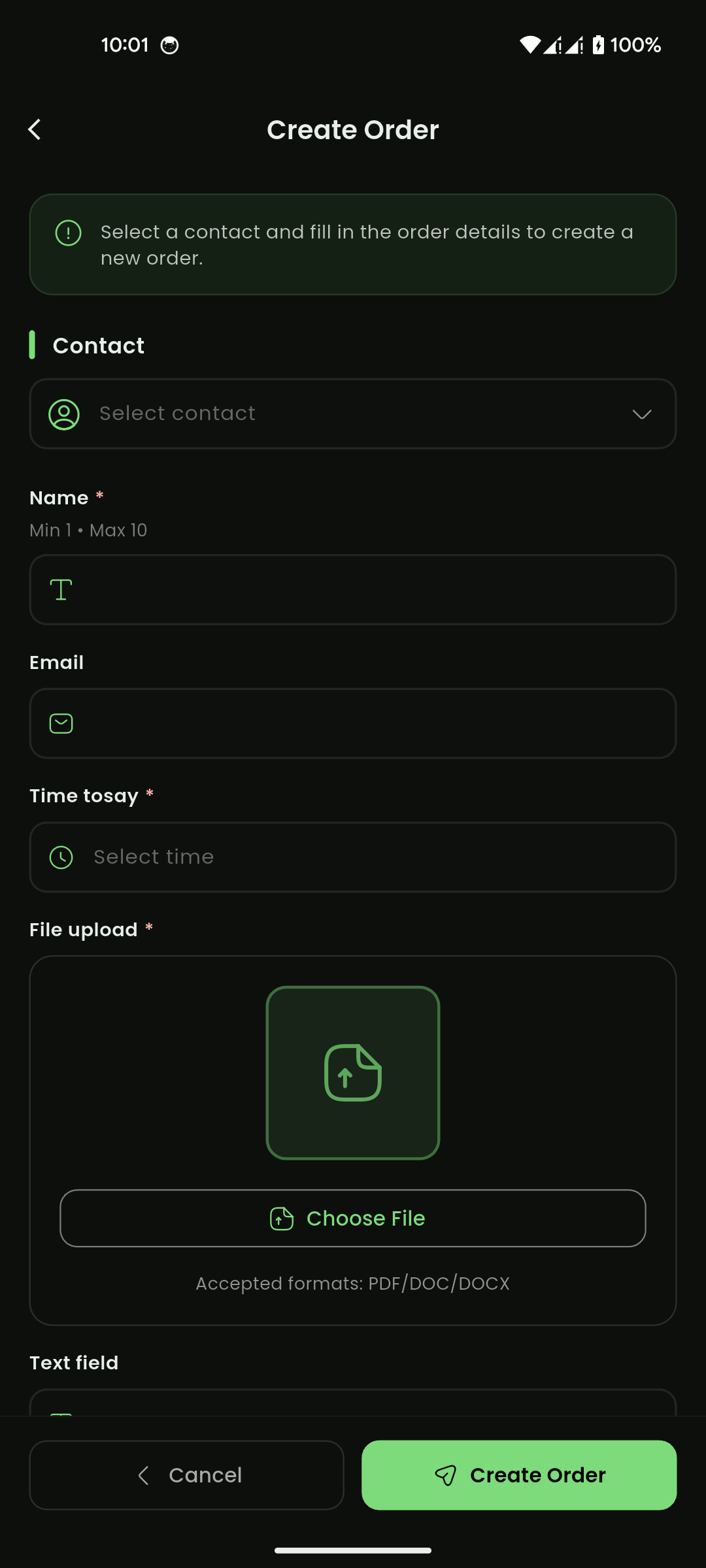
Mobile View
Order details and status update
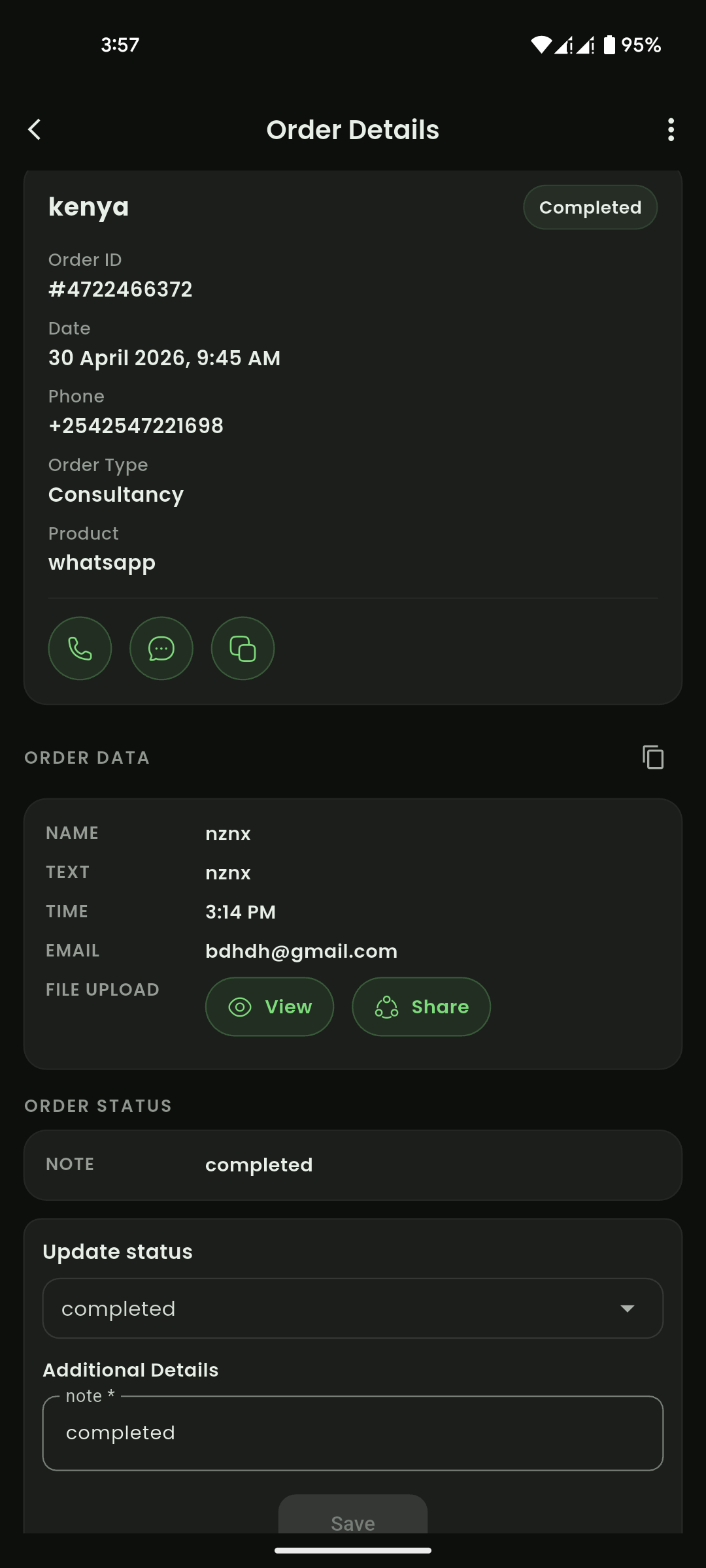
Mobile View