
What this feature does:
Campaigns let teams send messages to selected contacts or groups using message templates.
When to use it:
Use campaigns for announcements, promotions, reminders, updates, and customer engagement.
Campaign setup flow (3 steps)
- Create a contact group in Groups.
- Create a template in Templates and wait until it is approved.
- Create the campaign using the contact group and approved template.
How to use it:
- Open Campaigns.
- Select New Campaign or Create Campaign.
- Choose a group or recipient list.
- Select a message template.
- Fill in required template variables.
- Add a file if the selected template or campaign requires media.
- Review the message preview.
- Choose whether to schedule the campaign or send it immediately.
- Confirm the campaign.
Expected result:
The campaign is created, scheduled, or sent based on your selected timing.
Important notes:
- Campaign creation depends on group setup and template approval.
- Campaigns require valid templates.
- Campaigns may be blocked if billing is pending.
- Scheduled campaigns require a valid scheduled time.
- Campaigns can be searched.
- Campaign details include recipient status and failure reasons where available.
- Campaigns may be stopped or deleted depending on status and permissions.
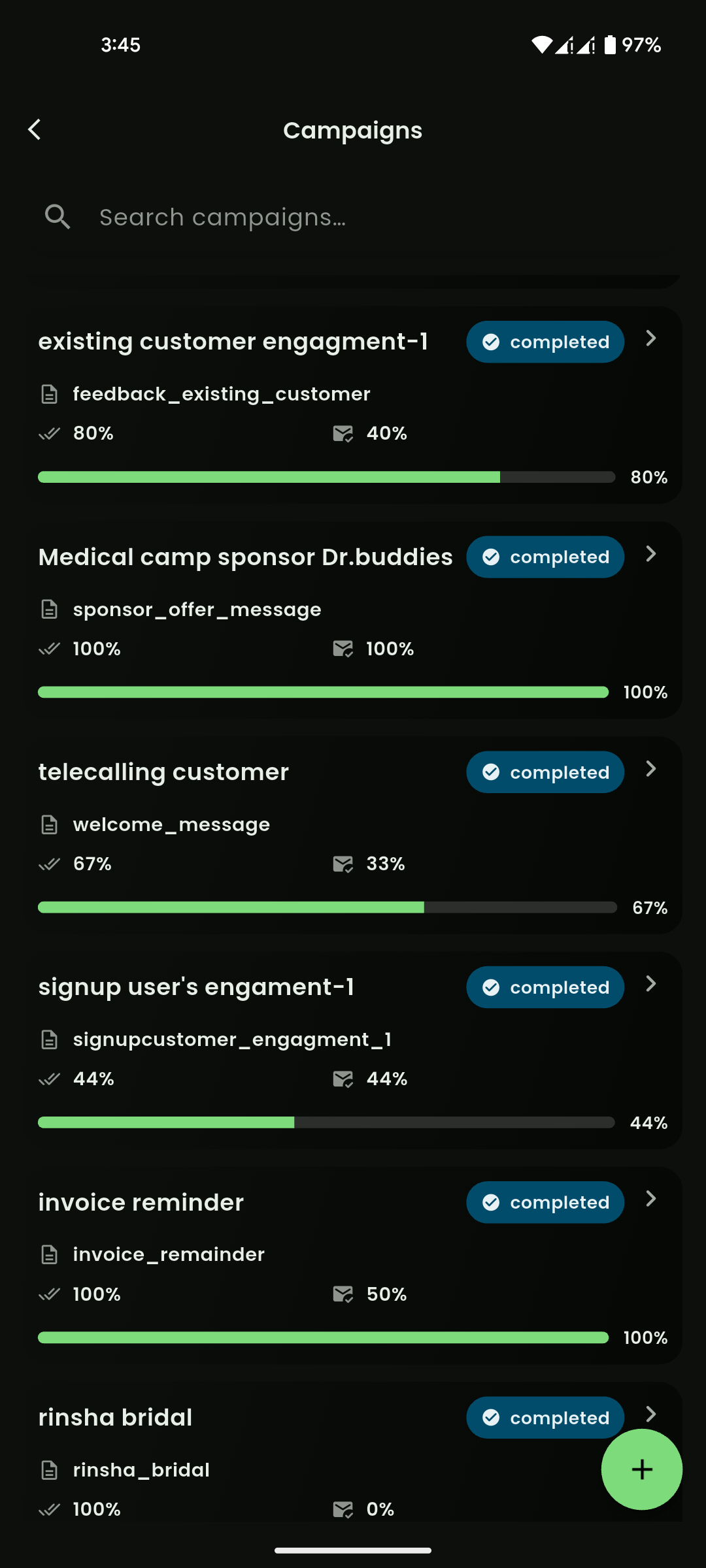
Mobile View
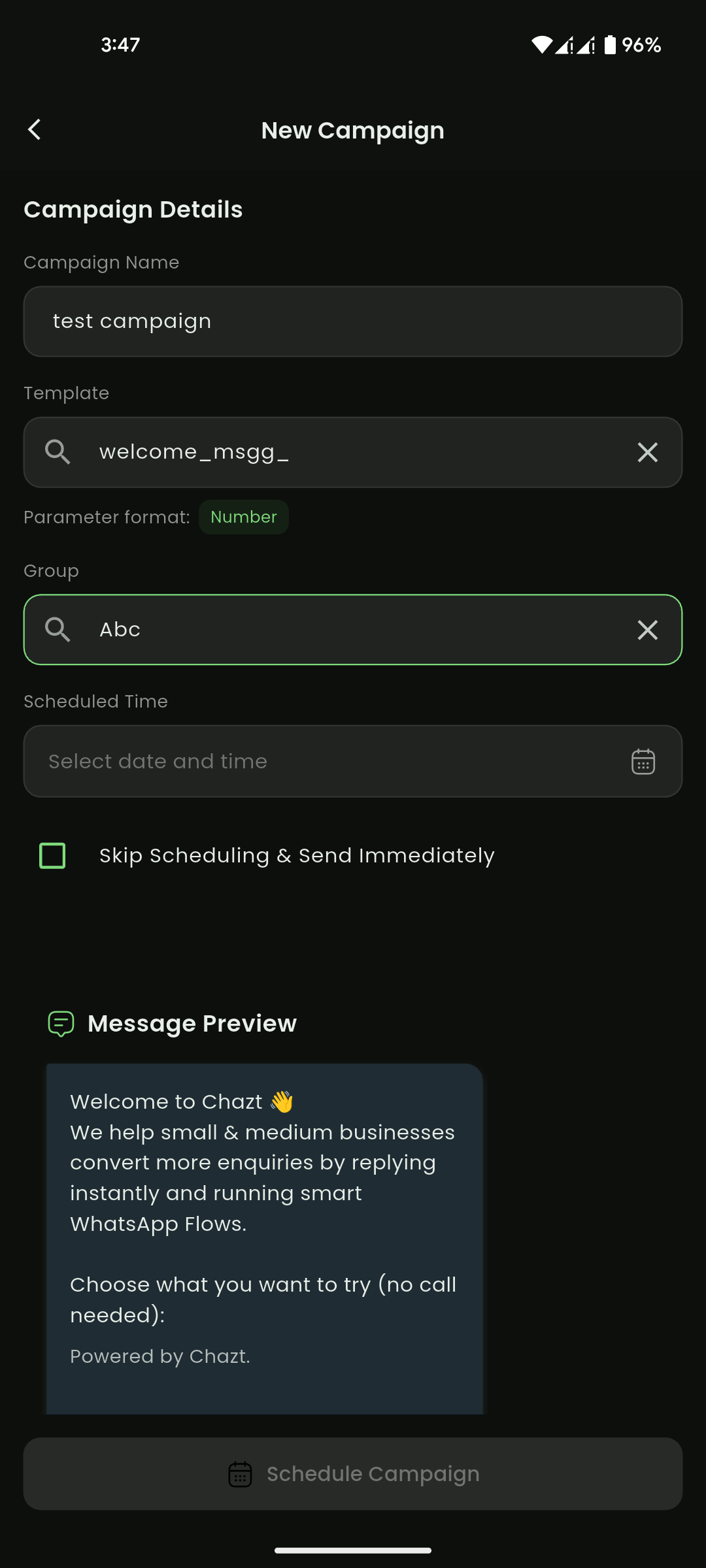
Mobile View
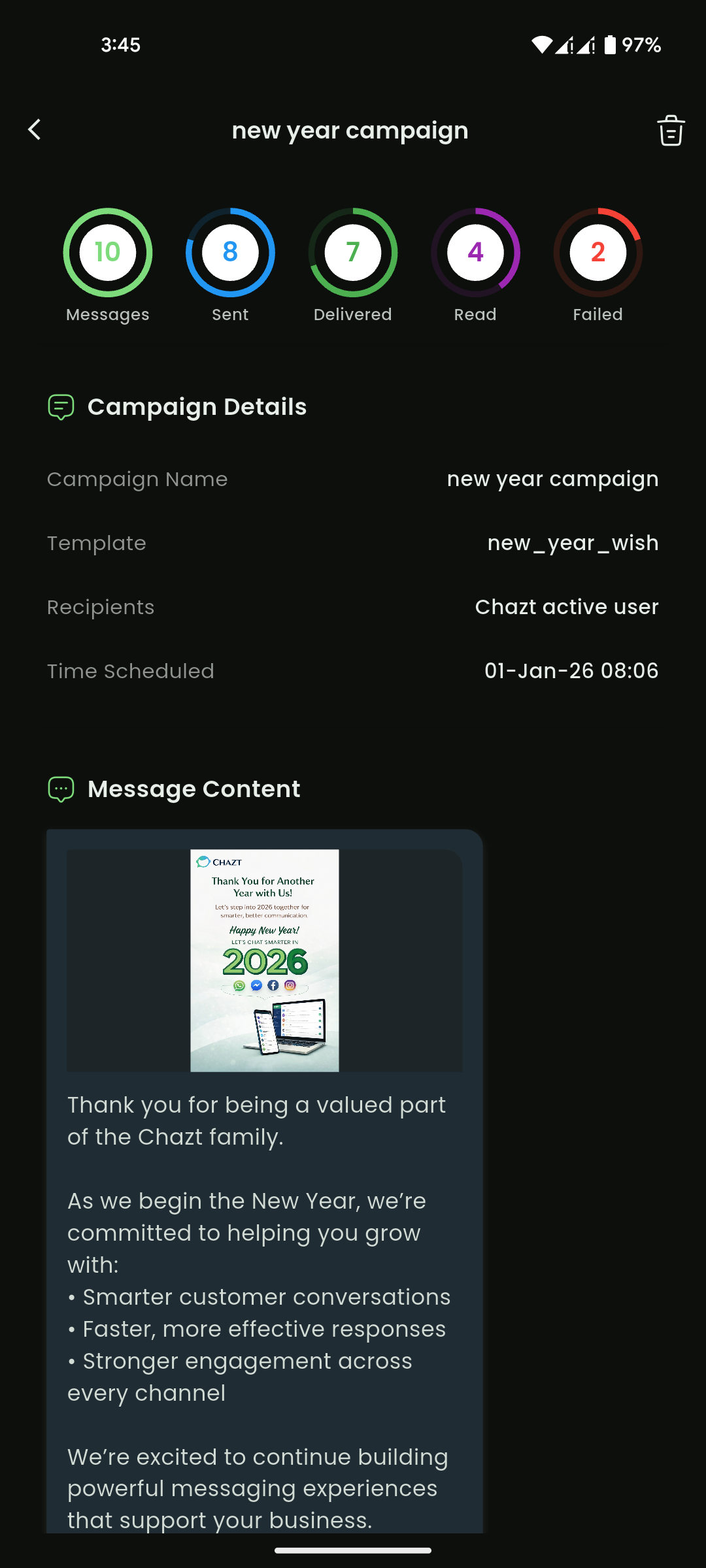
Mobile View